

How to Remove Malware from a PC
Quick Summary
Understanding Malware
⚠️ Warnings
Steps
Understanding Malware
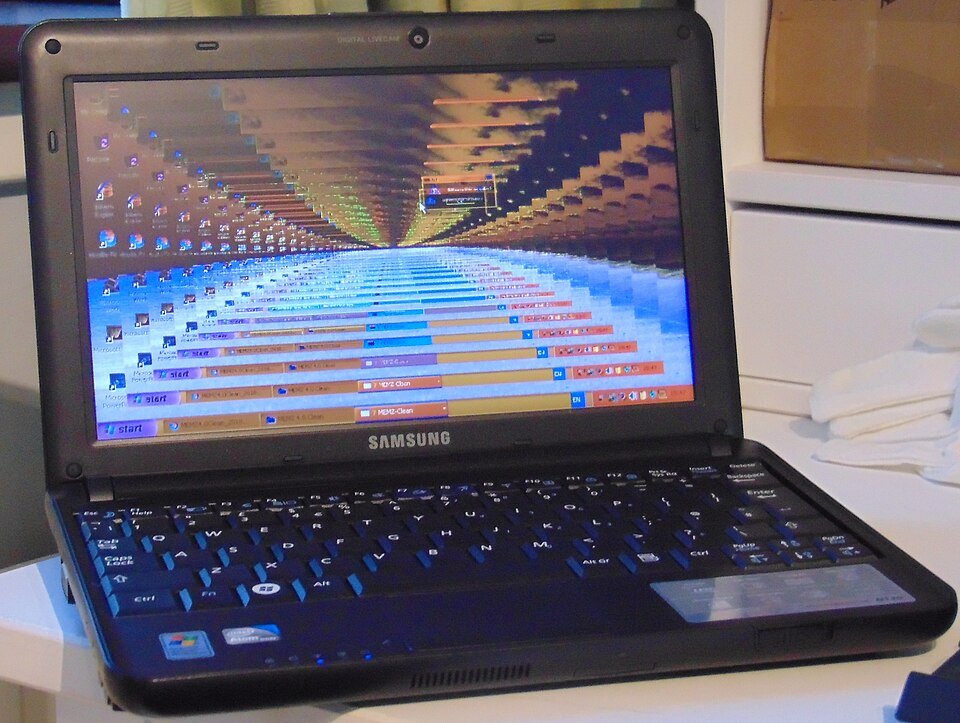
Malware, short for malicious software, includes viruses, spyware, and ransomware that can harm your computer. Identifying and removing malware is crucial for maintaining your PC's health and protecting your data. In this guide, we will explore how to remove malware from a PC effectively. When you remove malware from a pc, take your time and follow each step carefully.
Signs of Malware Infection
Common signs of malware infection include slow performance, frequent crashes, unwanted pop-ups, and unusual behaviour from your applications. If you notice any of these symptoms, it's essential to take immediate action to remove malware from your PC.
Tools You Will Need
What you'll need
Antivirus software, Malware removal tool
Step 1: Disconnect from the Internet

To prevent further damage and data theft, disconnect your PC from the internet. This can be done by unplugging the Ethernet cable or disabling Wi-Fi. This step helps stop malware from communicating with its source.
Step 2: Boot into Safe Mode
Restart your computer and boot into Safe Mode. To do this, press F8 repeatedly as your PC starts up. Select 'Safe Mode with Networking' from the menu. This mode loads only essential drivers and can help in removing malware.
Step 3: Run Antivirus Software

Open your antivirus software and run a full system scan. Ensure your antivirus definitions are up to date to catch the latest threats. Follow the prompts to quarantine or delete any detected malware.
Step 4: Use a Malware Removal Tool

If your antivirus software doesn't remove the malware, download a reputable malware removal tool. Follow the instructions to install and run the tool, which will scan for and eliminate stubborn malware.
Step 5: Delete Temporary Files

To remove any remnants of malware, delete temporary files. You can do this by typing 'Disk Cleanup' in the Windows search bar, selecting your drive, and checking 'Temporary files' before clicking 'OK'.
Step 6: Update Your Operating System
Ensure your operating system is up to date. Go to 'Settings' > 'Update & Security' > 'Windows Update' and check for updates. Installing the latest updates can patch vulnerabilities that malware exploits.
Step 7: Change Your Passwords
After removing malware, change your passwords for important accounts, especially if you suspect they may have been compromised. Use strong, unique passwords for each account to enhance security.
Step 8: Monitor Your PC
Keep an eye on your PC's performance and behaviour for a few weeks. If you notice any unusual activity, repeat the malware removal process or consult a professional.
Conclusion
Removing malware from a PC is essential for maintaining its performance and protecting your personal information. By following these steps, you can effectively remove malware and safeguard your computer. Regularly updating your software and running scans can help prevent future infections.
FAQs
Troubleshooting
Additional Resources
Trusted health information and advice.
Visit NHS for health adviceImprove your PC's performance by clearing cache.
How to Clear Cache on Windows 11Troubleshoot phone charging issues effectively.
How to Fix Phone Not ChargingFinal Thoughts
By following these steps on how to remove malware from a PC, you can protect your computer and personal information. Remember to stay vigilant and keep your software updated to prevent future infections.
Related guides and resources
Explore related how-to guides on our site, including more in this topic and our most popular tutorials.
Resetting a smart plug can resolve connectivity issues and restore its functionality. This guide provides detailed steps to help you reset your smart plug effectively, ensuring it works seamlessly with your smart home devices.
How to Reset a Smart PlugIs your phone not charging? This guide provides practical steps to troubleshoot and fix phone not charging issues effectively. Follow our expert advice to get your device back to full power in no time.
How to Fix Phone Not ChargingIs your laptop overheating? This guide provides practical steps to troubleshoot and fix overheating laptop issues effectively. Follow our expert advice to keep your device running cool and smoothly.
How to Fix Overheating LaptopOne of our most-read how-to guides.
How can someone organize a makeup collection?🔧 Troubleshooting
Antivirus software won't run
Try reinstalling the antivirus software or using a different malware removal tool to scan your PC.
PC still slow after malware removal
Check for other issues like hard drive space or background applications consuming resources. Running a disk cleanup may help.
Unusual pop-ups persist
Ensure you've removed all malware and consider resetting your browser settings to eliminate any adware.
The antivirus software fails to detect any malware after a scan.
Ensure that your antivirus software is up-to-date. If it is, try running a full system scan in safe mode. If malware is still not detected, consider using a second opinion malware scanner, such as Malwarebytes, to identify and remove any hidden threats.
The computer is still running slowly after malware removal.
Check for leftover files or remnants of the malware by using a disk cleanup tool. Additionally, review startup programs and disable any unnecessary ones that may be slowing down your system. Finally, consider optimizing your system settings and performing regular maintenance tasks like defragmenting your hard drive.
❓ FAQs
What is malware?
Malware is malicious software designed to harm or exploit any programmable device or network. It includes viruses, worms, spyware, and ransomware.
How can I tell if my PC has malware?
Signs of malware infection include slow performance, unexpected pop-ups, and unfamiliar programs running on your PC. If you notice these symptoms, it's time to take action.
Can malware be removed without antivirus software?
Yes, you can use malware removal tools that do not require traditional antivirus software. However, having antivirus software is recommended for ongoing protection.
How often should I scan my PC for malware?
It's advisable to scan your PC for malware at least once a month or whenever you notice unusual behaviour. Regular scans help keep your system secure.
What should I do if malware keeps returning?
If malware keeps returning, consider resetting your PC to factory settings or consulting a professional. Ensure your software is up to date and avoid downloading suspicious files.
What are the different types of malware I should be aware of?
Common types of malware include viruses, worms, trojans, ransomware, spyware, adware, and rootkits. Each type has different methods of infection and effects on your system.
Can I prevent malware infections?
Yes, you can prevent malware infections by keeping your operating system and software updated, using a reputable antivirus program, avoiding suspicious downloads, and being cautious with email attachments and links.
What should I do if I accidentally download malware?
If you accidentally download malware, disconnect your PC from the internet immediately, run a malware scan using your antivirus or a dedicated malware removal tool, and follow the prompts to remove the detected threats.
Know a better way?
Suggest clearer steps, fix mistakes, or add detail you use in practice. Your edit is reviewed before it goes live.
Was this guide helpful?
Guide by How To Library
You might also like
Similar guides based on topic, category, and tags.

How to Fix a Frozen iPhone
Understanding Why Your iPhone Freezes

How to Fix Apps Crashing on Android
Understanding the Problem

How to Back Up Your Phone
Understanding Phone Backups

How to Free Up Storage on Android
Understanding Storage on Android

How to Set Up Parental Controls
Understanding Parental Controls

How do I install an Android phone? A complete guide for beginners
Carefully open the box containing your Android phone. Remove the device, charger, and any included accessories. Ensure you have all items as listed in the manufacturer instructions.
Comments
Log in to comment.