

How to Free Up Storage on Android

Quick Summary
Understanding Storage on Android
⚠️ Warnings
Steps
Understanding Storage on Android
Storage space on your Android device is crucial for its performance. When your device runs low on storage, it can slow down, prevent updates, and limit your ability to download new apps or media. Understanding how to free up storage on Android can help you maintain optimal performance. When you free up storage on android, take your time and follow each step carefully. This guide to free up storage on android covers the full process from start to finish.
What you'll need
Android device, internet connection
Check Your Storage Usage

Begin by checking how much storage you are currently using. Go to 'Settings', then 'Storage'. Here, you will see a breakdown of what is taking up space, including apps, images, videos, and cached data.
Delete Unused Apps
Identify apps that you no longer use. Go back to 'Settings', select 'Apps', and review the list. Tap on any app you wish to remove and select 'Uninstall'. This can free up significant space, especially for large games or rarely used applications.
Clear App Cache

Apps often store cache data that can accumulate over time. To clear this, go to 'Settings', then 'Apps'. Select an app, then tap on 'Storage' and choose 'Clear Cache'. This action can help recover storage without deleting app data.
Move Media to Cloud Storage
Consider moving photos, videos, and other media to cloud storage services like Google Drive or Dropbox. Install the app, upload your files, and then delete them from your device to free up space.
Delete Old Messages and Media

Text messages and media files can take up a lot of space. Open your messaging app, go through old conversations, and delete those that are no longer needed. Also, check for any large media files sent or received and remove them.
Use Storage Management Tools
Android devices often come with built-in storage management tools. Access these by going to 'Settings', then 'Storage'. Here, you may find options to free up space automatically or suggestions for files to delete.
Uninstall Updates from Pre-installed Apps
Some pre-installed apps take up considerable space. You can uninstall updates for these apps to free up storage. Go to 'Settings', select 'Apps', choose the app, and tap 'Uninstall Updates'.
Factory Reset as a Last Resort
If your device is still struggling with storage issues, consider a factory reset. This will erase all data and restore your device to its original settings. Ensure you back up important data before proceeding. Go to 'Settings', then 'System', and select 'Reset options'.
Is your phone not charging? This guide provides practical steps to troubleshoot and fix phone not charging issues effectively. Follow our expert advice to get your device back to full power in no time
How to Fix Phone Not ChargingClearing the cache on Windows 11 can help improve system performance and resolve various issues. This guide provides step-by-step instructions on how to clear cache effectively, ensuring your device r
How to Clear Cache on Windows 11Conclusion
Regularly freeing up storage on Android is essential for maintaining device performance. By following these steps, you can ensure your device runs smoothly and has ample space for new content. Remember to periodically check your storage and manage your files to avoid future issues.
FAQs
Troubleshooting
Additional Resources
External Resources
Trusted health information and resources.
NHS Health InformationWarnings
Related guides and resources
Explore related how-to guides on our site, including more in this topic and our most popular tutorials.
Resetting a smart plug can resolve connectivity issues and restore its functionality. This guide provides detailed steps to help you reset your smart plug effectively, ensuring it works seamlessly with your smart home devices.
How to Reset a Smart PlugIs your phone not charging? This guide provides practical steps to troubleshoot and fix phone not charging issues effectively. Follow our expert advice to get your device back to full power in no time.
How to Fix Phone Not ChargingIs your laptop overheating? This guide provides practical steps to troubleshoot and fix overheating laptop issues effectively. Follow our expert advice to keep your device running cool and smoothly.
How to Fix Overheating LaptopOne of our most-read how-to guides.
How can someone organize a makeup collection?❓ FAQs
How often should I clear my cache?
It's a good practice to clear your cache every few weeks, especially for apps that you use frequently. This helps maintain optimal performance.
What happens if I uninstall an app?
When you uninstall an app, all data associated with it is removed from your device. Make sure to back up any important information before uninstalling.
Can I recover deleted files?
Once files are deleted from your device, they cannot be recovered unless you have a backup. Consider using cloud storage to prevent data loss.
Is it safe to use third-party storage management apps?
While many third-party apps can help manage storage, ensure you download from reputable sources to avoid security risks.
What should I do if my device is still low on storage?
If your device continues to have storage issues, consider upgrading to a device with more storage or using external storage options like SD cards.
How can I find out which apps are taking up the most space?
You can check your storage usage by going to Settings > Storage. From there, you can see a breakdown of how much space each app is using.
What is the difference between internal storage and external storage?
Internal storage is the built-in storage of your device, while external storage refers to additional storage options like SD cards that can be added to your device.
Can I move apps to an SD card to free up space?
Yes, many apps can be moved to an SD card. Go to Settings > Apps, select the app you want to move, and look for the option to change storage location.
Know a better way?
Suggest clearer steps, fix mistakes, or add detail you use in practice. Your edit is reviewed before it goes live.
Was this guide helpful?
Guide by How To Library
You might also like
Similar guides based on topic, category, and tags.
How to Fix Apps Crashing on Android
Understanding the Problem
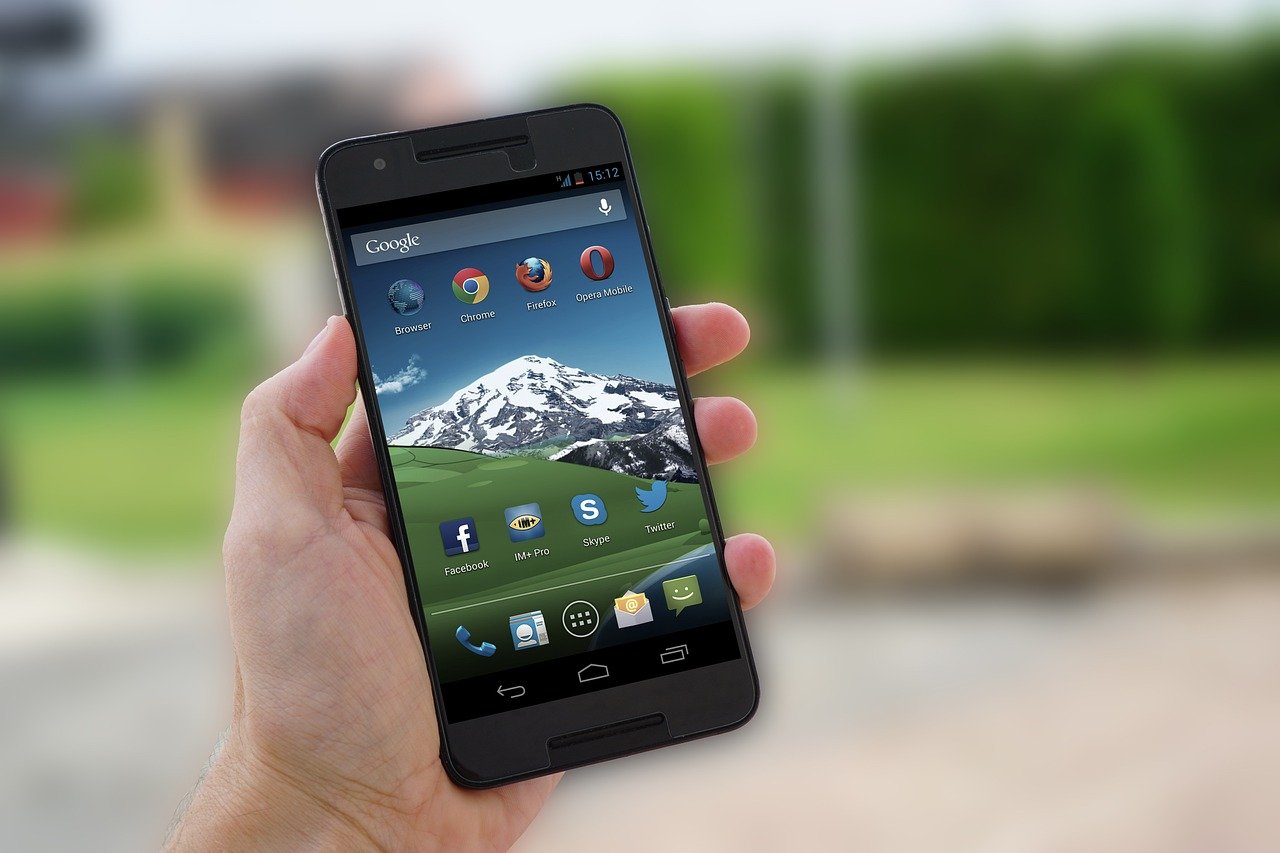
How do I install an Android phone? A complete guide for beginners
Carefully open the box containing your Android phone. Remove the device, charger, and any included accessories. Ensure you have all items as listed in the manufacturer instructions.

How do I install an Android phone? A complete guide for beginners
Carefully open the box containing your Android phone. Remove the device, charger, and any included accessories. Ensure you have all items as listed in the manufacturer instructions.

How to Fix a Frozen iPhone
Understanding Why Your iPhone Freezes
How to Back Up Your Phone
Understanding Phone Backups

How to Set Up Parental Controls
Understanding Parental Controls
Comments
Log in to comment.