

How do I install an Android phone? A complete guide for beginners
Quick Summary
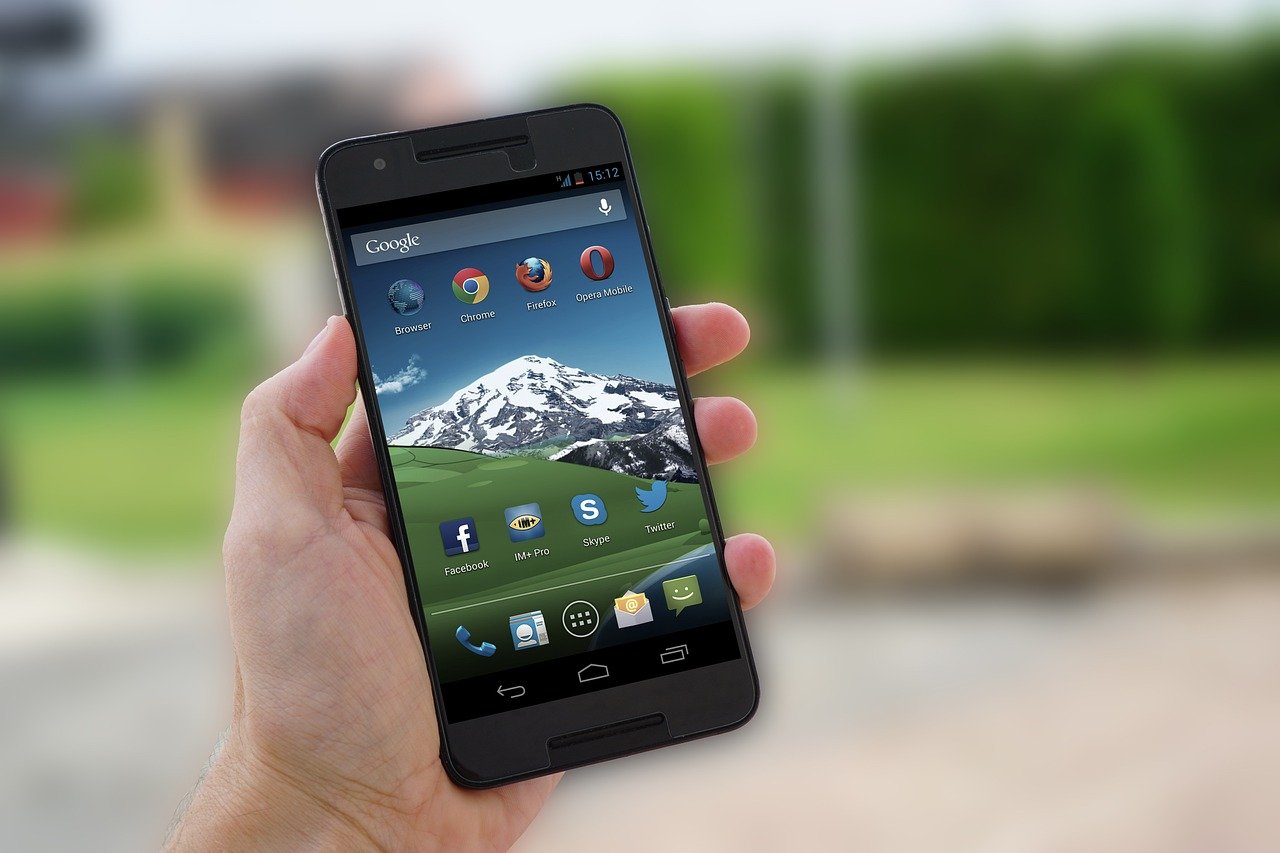
Carefully open the box containing your Android phone. Remove the device, charger, and any included accessories. Ensure you have all items as listed in the manufacturer instructions.
⚠️ Warnings
Steps
Unbox Your Android Phone

Carefully open the box containing your Android phone. Remove the device, charger, and any included accessories. Ensure you have all items as listed in the manufacturer instructions.
Charge Your Android Phone
Connect the charger to your Android phone and plug it into a power outlet. Allow it to charge for at least 30 minutes before proceeding with the installation.
Insert the SIM Card

Locate the SIM card tray, usually on the side of the phone. Use the SIM eject tool provided to open the tray. Place your SIM card into the tray correctly and reinsert it into the phone.
Power On Your Android Phone

Press and hold the power button until the phone vibrates or the logo appears on the screen. Release the button to turn on the device.
Select Your Language

Once the phone powers on, follow the on-screen prompts to select your preferred language. Tap on the language to confirm your selection.
Connect to Wi-Fi
Select your Wi-Fi network from the list displayed. Enter the Wi-Fi password and tap 'Connect' to establish a connection to the internet.
Sign In to Your Google Account
When prompted, enter your Google account email and password to sign in. If you don’t have an account, select 'Create account' to set one up.
Set Up Device Security
Choose a security method such as a PIN, password, or fingerprint recognition. Follow the on-screen instructions to set this up.
Download Software Updates
Check for any software updates by going to 'Settings' > 'System' > 'Software update'. If updates are available, follow the prompts to download and install them.
Transfer Data from Your Old Phone
If you have an old phone, select the option to transfer data during the setup process. Follow the on-screen instructions to connect both devices and transfer your contacts, messages, and apps.
Personalise Your Android Phone
Once setup is complete, explore the settings to adjust display brightness, wallpaper, and notification preferences. Download apps from the Google Play Store to enhance functionality.
Explore and Enjoy Your New Android Phone
Familiarise yourself with the features of your Android phone. Explore settings, apps, and widgets to make the most of your device.
Related guides and resources
Explore related how-to guides on our site, including more in this topic and our most popular tutorials.
Unbox Your Android Phone Carefully open the box containing your Android phone. Remove the device, charger, and any included accessories. Ensure you have all items as listed in the manufacturer instructions. Charge Your Android Phone Connect the charger to your Android phone and plug it into a power outlet. Allow it to charge for at least 30 minutes before proceeding with the installation. Insert the SIM Card Locate the SIM card tray, usually on the side of the phone. Use the SIM eject tool pro
How do I install an Android phone? A complete guide for beginnersGather Your Equipment for Smart TV Setup Collect your smart TV, remote control, power cable, and any external devices like a soundbar or gaming console. Ensure you have a stable internet connection available. Gather Your Equipment for Smart TV Setup Position Your Smart TV Place your smart TV on a stable surface or mount it on the wall using a compatible bracket. Ensure it's near a power outlet and within range of your Wi-Fi router. Position Your Smart TV Connect Power to Your Smart TV Plug t
How can I set up a smart TV in my home?Experiencing a frozen iPhone can be frustrating, but there are several effective methods to resolve this issue. This guide provides step-by-step instructions to help you fix a frozen iPhone quickly and easily, ensuring your device is back to normal in no time.
How to Fix a Frozen iPhoneBrowse all guides in this category.
More in TechnologyOne of our most-read how-to guides.
How can someone organize a makeup collection?🔧 Troubleshooting
Phone won't turn on
Ensure the phone is charged. Try holding the power button for 10 seconds to force a restart.
Microphone not detected by the system
Check connections, ensure the microphone is enabled in sound settings, and update drivers.
Cannot connect to Wi-Fi
Check if the Wi-Fi password is correct. Restart your router and try connecting again.
Poor sound quality from the microphone
Inspect the microphone for damage, check settings for enhancements, and reduce background noise.
Microphone works in one app but not another
Check app permissions and settings for the specific application to ensure it has access to the microphone.
❓ FAQs
What should I do if I forgot my Google account password?
Visit the Google account recovery page to reset your password.
What should I do if my microphone is still not working after troubleshooting?
If your microphone is still not functioning, it may be a hardware issue. Consider testing it on another device or seeking professional help.
Can I use my old SIM card in the new Android phone?
Yes, as long as the SIM card is compatible with the new phone and not locked to another network.
Can software updates cause microphone issues?
Yes, sometimes software updates can lead to compatibility issues with your microphone. Ensure that your drivers are updated and check your settings after an update.
How do I reset my Android phone if I encounter issues?
Go to 'Settings' > 'System' > 'Reset options' and select 'Erase all data (factory reset)'.
How can I improve microphone quality?
To enhance microphone quality, ensure it is positioned correctly, reduce background noise, and consider using a pop filter or windscreen.
Is it possible to fix a broken microphone?
In some cases, a broken microphone can be repaired, but often replacement is more practical. Consult with a technician for an assessment.
What are some common causes of microphone failure?
Common causes include hardware malfunctions, incorrect settings, outdated drivers, or software conflicts.
Know a better way?
Suggest clearer steps, fix mistakes, or add detail you use in practice. Your edit is reviewed before it goes live.
Was this guide helpful?
Guide by How To Library
You might also like
Similar guides based on topic, category, and tags.
How do I install an Android phone? A complete guide for beginners
Carefully open the box containing your Android phone. Remove the device, charger, and any included accessories. Ensure you have all items as listed in the manufacturer instructions.
How can I set up a smart TV in my home?
Collect your smart TV, remote control, power cable, and any external devices like a soundbar or gaming console. Ensure you have a stable internet connection available.
How to Fix a Frozen iPhone
Understanding Why Your iPhone Freezes
How to Remove Malware from a PC
Understanding Malware
How to Set Up Parental Controls
Understanding Parental Controls
How to Fix Apps Crashing on Android
Understanding the Problem
Comments
Log in to comment.