

How can I set up a smart TV in my home?
Quick Summary
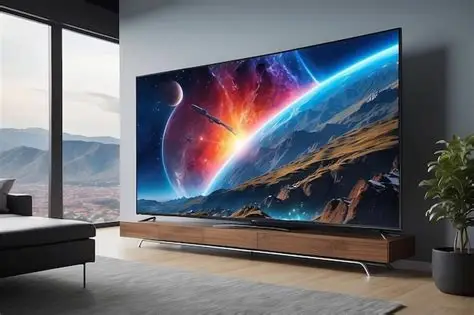
Collect your smart TV, remote control, power cable, and any external devices like a soundbar or gaming console. Ensure you have a stable internet connection available.
⚠️ Warnings
Steps
Gather Your Equipment for Smart TV Setup
Collect your smart TV, remote control, power cable, and any external devices like a soundbar or gaming console. Ensure you have a stable internet connection available.
Position Your Smart TV
Place your smart TV on a stable surface or mount it on the wall using a compatible bracket. Ensure it's near a power outlet and within range of your Wi-Fi router.
Connect Power to Your Smart TV

Plug the power cable into the back of the smart TV and connect it to the wall outlet. Switch on the power at the outlet.
Connect External Devices to Your Smart TV

If you have external devices (like a soundbar or gaming console), connect them using HDMI cables. Plug the HDMI cable into the respective ports on both the TV and the device.
Turn on Your Smart TV

Press the power button on the remote control or the TV itself to turn it on. Wait for the initial setup screen to appear.
Select Your Language and Region
Follow the on-screen prompts to select your preferred language and region settings. This is crucial for accessing local content.
Connect to Wi-Fi for Your Smart TV
Select your Wi-Fi network from the list and enter the password when prompted. Ensure the connection is stable for streaming.
Log into Streaming Services on Your Smart TV
Open the app store on your smart TV and download your preferred streaming services like Netflix, Amazon Prime, or BBC iPlayer. Log in using your account details.
Explore Built-in Features of Your Smart TV
Navigate through the settings to explore features such as voice control, screen mirroring, and social media access. Familiarize yourself with the remote's functions.
Adjust Picture and Sound Settings
Go to the settings menu to adjust picture quality and sound settings according to your preference. Test different modes to find the best setup.
Update Your Smart TV Software
Check for software updates in the settings menu. Download and install any available updates to ensure your smart TV runs smoothly.
Enjoy Your Smart TV Experience
Start streaming your favourite shows and movies. Explore additional apps and features to enhance your viewing experience.
Sources
External references used when preparing this guide:
NHS guide on setting up technology for health and well-being.
How to set up your Smart TVConsumer Reports guide on how to set up a Smart TV.
Smart TV Setup GuideTechRadar's tips for setting up a Smart TV.
Smart TV Setup TipsRelated guides and resources
Explore related how-to guides on our site, including more in this topic and our most popular tutorials.
Essentials for Productive Remote Work A well-equipped home office requires a stable internet connection, a chair that provides proper spinal support, a monitor positioned at eye level, and lighting that does not create glare on the screen. Focus on these fundamental elements first; once you have established a solid foundation, you can enhance your setup with additional accessories as needed. What You'll Need To create a budget home office setup, you will need the following items: a desk (at l
When should I build a budget home office setup?A practical guide to launching a website safely. HTTPS, backups, and forms — run through the go-live checklist before sharing your URL publicly.
Launching a website safelyA practical guide to guest wifi setup. A practical guide to you should set up guest wi-fi. Keep visitors on an isolated network — read this overview, then follow the interactive router steps.
Why you should set up guest Wi-FiBrowse all guides in this category.
More in TechnologyOne of our most-read how-to guides.
How can someone organize a makeup collection?🔧 Troubleshooting
Smart TV won't connect to Wi-Fi
Ensure the Wi-Fi password is entered correctly. Restart your router and try connecting again. If the problem persists, check for any software updates.
Remote control not working
Check the batteries in the remote. If the batteries are fine, try resetting the remote by removing the batteries and pressing any button for 10 seconds before reinserting them.
Apps are not downloading
Check your internet connection. If the connection is stable, try restarting your smart TV and attempting the download again.
❓ FAQs
What should I do if my smart TV doesn't turn on?
Check if the power cable is securely connected and the outlet is functioning. Try using a different power outlet if necessary.
Can I use my smart TV without internet?
Yes, you can use your smart TV to watch regular TV channels if you have an aerial connected, but many smart features and apps require an internet connection.
How do I reset my smart TV?
Go to the settings menu and look for 'System' or 'Support' options. Select 'Reset' and follow the on-screen instructions to restore factory settings.
Can I connect my smart TV to a wired network?
Yes, you can connect your smart TV to a wired network using an Ethernet cable for a more stable internet connection.
What if my streaming apps are buffering?
Buffering can occur due to a slow internet connection. Try restarting your router or reducing the number of devices connected to your network.
Know a better way?
Suggest clearer steps, fix mistakes, or add detail you use in practice. Your edit is reviewed before it goes live.
Was this guide helpful?
Guide by How To Library
You might also like
Similar guides based on topic, category, and tags.
How do I install an Android phone? A complete guide for beginners
Carefully open the box containing your Android phone. Remove the device, charger, and any included accessories. Ensure you have all items as listed in the manufacturer instructions.
How do I install an Android phone? A complete guide for beginners
Carefully open the box containing your Android phone. Remove the device, charger, and any included accessories. Ensure you have all items as listed in the manufacturer instructions.
How to Fix a Frozen iPhone
Understanding Why Your iPhone Freezes
How to Remove Malware from a PC
Understanding Malware
How to Set Up Parental Controls
Understanding Parental Controls
How to Fix Apps Crashing on Android
Understanding the Problem
Comments
Log in to comment.