

How to Fix my Ring Doorbell?
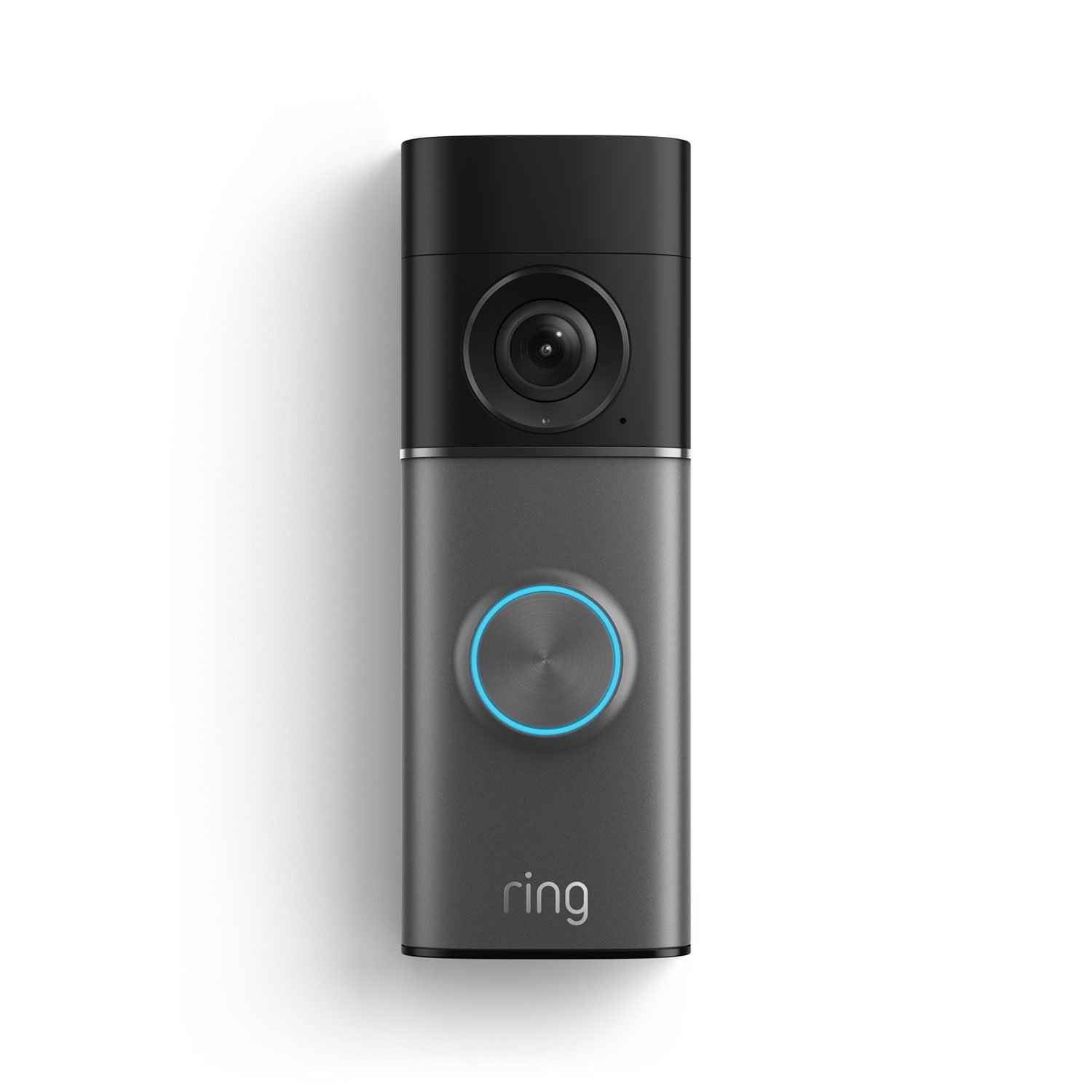
This guide is shown in English — a full translation for your region is not available yet.
Quick Summary
How to Fix my Ring Doorbell?
⚠️ Warnings
Steps
How to Fix my Ring Doorbell?
If your Ring Doorbell isn't functioning properly, there are several steps you can take to troubleshoot and fix the issue. Common problems include connectivity issues, battery problems, and software glitches. Follow the steps below to help resolve the issue.
Check the Power Supply

Ensure that your Ring Doorbell is receiving power. If it's battery-operated, check if the battery needs charging or replacing. If it's wired, inspect the wiring for any damage or loose connections.
Reset the Doorbell

Sometimes, a simple reset can resolve issues. Press and hold the setup button on the back of the doorbell for about 15 seconds until the light flashes. After resetting, reconnect it to your Wi-Fi network.
Update the App and Firmware

Make sure that both the Ring app on your smartphone and the firmware on your doorbell are up-to-date. Updates can fix bugs and improve performance. To check for updates, open the Ring app and navigate to the device settings.
Check Wi-Fi Connection

Ensure that your Ring Doorbell is connected to a stable Wi-Fi network. You can do this by checking the device health in the Ring app. If the signal is weak, consider relocating your router or using a Wi-Fi extender.
Contact Ring Support

If you've tried all the above steps and your Ring Doorbell is still not working, it may be time to contact Ring's customer support for further assistance. They can help diagnose hardware issues or guide you through advanced troubleshooting steps.
Related guides and resources
Explore related how-to guides on our site, including more in this topic and our most popular tutorials.
Setting up a home Wi-Fi network typically takes 15–20 minutes. Start by connecting your router to the modem using an Ethernet cable. Access the router's admin page through a web browser, usually by entering the router's IP address. Create a strong password for your Wi-Fi network and configure other settings such as the network name (SSID) and security type (WPA3 is recommended for better security). Finally, test your connection on multiple devices to ensure everything is working properly before
How do I set up a home wi-fi network?This guide provides essential steps to secure your home computer against various types of malware, ensuring usability while enhancing security.
How can I secure my home computer against malware?A practical guide to set up two-factor authentication. A practical guide to how does it work to set. Two-factor authentication (2FA) blocks most account takeovers even when passwords leak. Work through this checklist to enable it on email, banking, and social accounts without locking yourself out.
How does it work to set up two-factor authentication?Browse all guides in this category.
More in How-to guidesOne of our most-read how-to guides.
How to Build Muscle at Home🔧 Troubleshooting
Ring Doorbell not recording motion.
Check the motion settings in the Ring app to ensure motion alerts are enabled. Also, verify that the motion zones are correctly set up.
Live view not working.
Ensure your Wi-Fi connection is stable and that the Ring app is updated. Restart the app and try again.
❓ FAQs
What should I do if my Ring Doorbell won't connect to Wi-Fi?
Ensure your Wi-Fi network is functioning properly, check the distance between the doorbell and router, and consider resetting the doorbell and reconnecting it to Wi-Fi.
How can I tell if my Ring Doorbell is charging?
If your Ring Doorbell has a battery, check the battery status in the Ring app under 'Device Health'. A low battery indicator will show if it needs charging.
Know a better way?
Suggest clearer steps, fix mistakes, or add detail you use in practice. Your edit is reviewed before it goes live.
Was this guide helpful?
Guide by How To Library
You might also like
Similar guides based on topic, category, and tags.
How do I set up a home wi-fi network?
Lay out your modem, router, Ethernet cable, and power adapters on a clear surface. Check that each device has its own power brick and that the Ethernet cable is long enough to reach from modem to router.
How can I secure my home computer against malware?
Hardening your home computer
How does it work to set up two-factor authentication?
Securing accounts with a second factor
What do I need to transfer files between devices wirelessly?
Moving files without cables
How do I create a QR code for free?
Create a free QR code in minutes
How do I make a QR code for my website?
Website QR codes that actually get scanned
Comments
Log in to comment.